

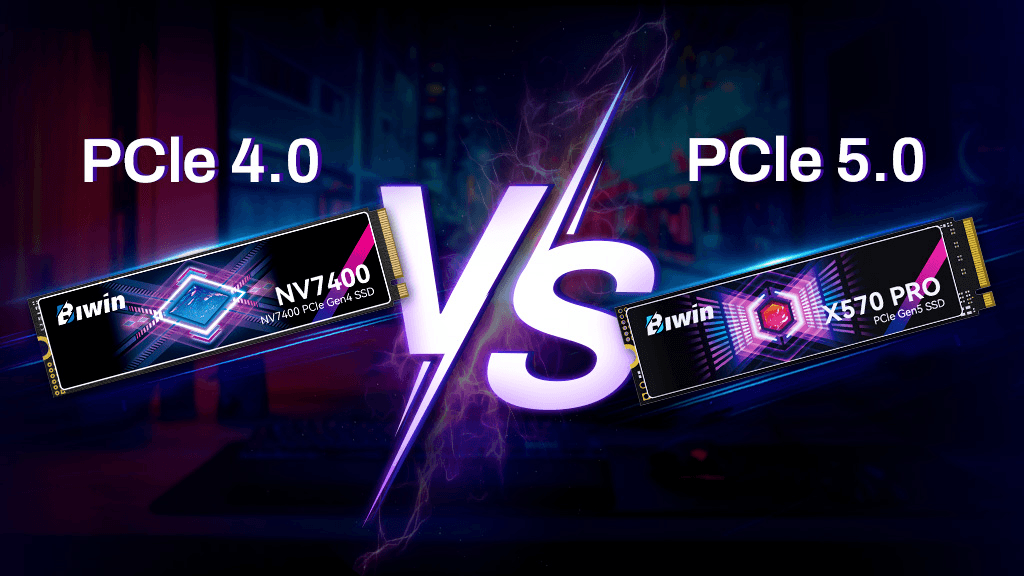
TL;DR
Gamers / PS5: A good PCIe 4.0 drive (with DRAM and a heatsink) is the sweet spot.
Creators moving huge files: PCIe 5.0 shines for sustained transfers—make sure you have active cooling.
Laptop upgrades: Prioritize low heat, power efficiency, and single-sided 2280 modules.
Budget builds: A quality PCIe 3.0/4.0 SSD still feels instant for everyday use.
What Actually Changes From Gen4 → Gen5
Spec | PCIe 3.0 NVMe | PCIe 4.0 NVMe | PCIe 5.0 NVMe |
Typical sequential read | ~3,500 MB/s | ~7,000 MB/s | ~10,000–14,000 MB/s |
Typical sequential write | ~3,000 MB/s | ~5,000–6,500 MB/s | ~9,500–12,000 MB/s |
Random I/O gains | Noticeable vs SATA | Strong | Strong (controller-limited) |
Heat output | Low | Moderate | High—needs serious cooling |
Price per TB | Lowest | Great value | Highest (early 2025) |
Reality check: Your app/game load times depend more on latency, caching, and CPU than headline sequential speeds. Gen5’s big numbers mainly help massive file copies, scratch disks, and pro media workflows.
DRAM vs DRAM-less (HMB)
DRAM SSDs keep a fast mapping table on the drive → steadier performance under heavy loads and better sustained writes.
DRAM-less (HMB) uses system memory over PCIe → fine for light use, cheaper, sometimes spiky under pressure.
For gaming and creative workstations, a DRAM drive is the safer bet.
Heatsinks & Airflow (Don’t Skip This)
Gen5 runs hot. Many drives include tall heatsinks or even mini fans. If yours doesn’t, use the motherboard M.2 shield (with thermal pads) or add an aftermarket heatsink.
Leave clear airflow around the GPU area.
Avoid stacking two hot drives under a large GPU without a fan path.
On small form factor builds, consider Gen4 to reduce heat/noise.
Compatibility & Fit
Topic | What to Check |
Form factor | Most consumer drives are M.2 2280. Some thin laptops need single-sided modules. |
Slot version | A Gen5 drive in a Gen4 slot runs at Gen4 speeds (and vice versa). |
Motherboard lanes | Ensure your top M.2 slot is CPU-attached for maximum bandwidth. |
Consoles | PS5 requires NVMe M.2 PCIe 4.0 x4, 2280, with a heatsink. |
Firmware | Update SSD and motherboard BIOS for best stability/perf. |
Use-Case Recommendations
1) Gaming PC / PS5 Expansion
Best value: PCIe 4.0 1–2 TB, DRAM, heatsink.
Why: Fast level loads + stable performance; Gen5 rarely changes in-game feel.
PS5 tip: Use a low-profile heatsink that fits the bay.
2) Creative Work (4K/8K video, RAW photo, Unreal, large datasets)
Best: PCIe 5.0 with robust heatsink/active cooling.
Why: Faster ingest, proxies, cache, and renders—minutes saved add up.
Scratch disk: Consider a dedicated Gen5 drive for scratch/scratch cache.
3) Ultrabook / Thin-and-Light Upgrade
Best: PCIe 4.0 single-sided drive with good power efficiency.
Why: Keeps temps and fan noise down, while feeling instant for daily tasks.
4) Budget Productivity Build
Best: Quality PCIe 3.0/4.0 with decent TBW and warranty.
Why: You’ll barely notice the difference in web/office compared to pricier options.
Spec Sheet Decoder (What Matters)
Capacity: 1–2 TB sweet spot; 4 TB for heavy creators/gamers.
Controller: Newer controllers = better thermals and firmware.
NAND type: TLC preferred for consistency; QLC is okay for read-mostly storage.
TBW/Warranty: Higher TBW (total bytes written) = better endurance.
SLC cache: Bigger cache helps—watch for sustained write speeds after cache fills.
AES 256-bit encryption: Nice for laptops; check OS compatibility (BitLocker/FileVault).
Setup Tips (Faster & Safer)
Clone or fresh install? Fresh installs avoid migrating old driver quirks.
Update firmware using the SSD utility; check BIOS for PCIe mode and resize BAR stability.
Thermal pads: Replace dry pads on mobo heatsinks; tighten screws evenly.
Align and format as GPT (not MBR) for modern systems; use NTFS/APFS/ext4 as needed.
Leave ~10% free space for the controller to breathe (improves longevity/perf).
FAQ
Will Gen5 make my games load much faster?Not dramatically. You’ll see the biggest wins in large file transfers and pro workloads.
Can I put a Gen5 SSD in a Gen4 slot?Yes—it’ll run at Gen4 speeds. Likewise, a Gen4 drive works fine in a Gen5 slot.
Do I need DRAM?For gaming and creative work, yes—it keeps performance consistent under pressure.
Why is my Gen5 drive throttling?Likely thermals. Add a better heatsink, improve case airflow, or consider Gen4.
Final Verdict
Choose Gen4 for most gamers, laptop upgrades, and everyday speed.
Choose Gen5 if you’re a creator or power user moving huge projects daily—and you can cool it properly.
Always prioritize DRAM, good thermals, and endurance over flashy peak numbers.
Want curated, best-value picks? See the top-rated NVMe options here → [https://amzn.to/3VwdntV]
Get the Full Tech Buyer's Guide
Join our free newsletter — we'll send our latest Tech picks, specs and verdicts straight to your inbox.
Free. No spam. Unsubscribe anytime.
Was this review helpful?
Be the first to share your feedback on this review.
Sign in to vote and let us know what you think.
Discussion (0)
No comments yet. Be the first to start the discussion.
Related Reviews

8 Best 4K Gaming PC Build in 2026 — Smooth Ultra-Settings Performance Without the Guesswork
If you’re searching for the best 4k gaming pc build 2026, the hardest part is separating true 4K-ready desktops from systems that only look powerful on paper. This roundup focuses on prebuilt gaming PCs with modern GPUs, strong CPUs, enough RAM, fast SSD storage, and cooling that can actually suppor
8 Best 1440p Gaming PC Build in 2026 — Smooth High-FPS Performance Without the Guesswork
If you’re trying to find the best 1440p gaming pc build, the challenge is knowing which prebuilt desktop actually has the right balance of GPU power, CPU headroom, cooling, and upgrade potential. A good 1440p rig should handle modern AAA games smoothly, keep competitive titles responsive, and avoid

Intel Core i9-14900K Review (2026): Specs, Pros & Cons, and Who It's For
Check Price on Amazon →